The HubSpot Send SMS - Bulk & 1-1 Integration App is the solution for all your needs to reach out & connect with your contacts via HubSpot. This app enables you to send SMS to individual contacts without launching any external windows.
Moreover, it also enables sending SMS to several contacts at once, in an automated way, through HubSpot workflows. By integrating Send SMS - Bulk & 1-1 messaging with HubSpot, you can easily manage your marketing & sales outreach through SMS.
Features
- Automate sending messages by setting up workflows to trigger based on requirements in HubSpot
- Send personalized SMS directly to contacts from within HubSpot
- View SMS details from a contact's activity timeline at any point in time. Details such as the message delivery status, the unique ID of a message and the timestamp are also available
Installation & Setup
- To install Send SMS - Bulk & 1-1 Integration App, Register Now!
- After submitting the form, you will be redirected to the Payment Gateway (Powered by Stripe)
- After you have completed the payment process, you will be redirected to a success page that will show your selected plan and its billing period
- You will soon receive an email with the Install Link, along with links to necessary documentation & guide.
- Install the app on your HubSpot account
- After installation, it will be redirected to credentials page where you have to provide the authkey for Send SMS - Bulk & 1-1 API
- After filling the credentials, it will redirect to HubSpot
- You have now connected the Send SMS - Bulk & 1-1 Integration to your HubSpot Account
Finding Send SMS - Bulk & 1-1 Integration App in HubSpot
- Click on the settings icon
- On the left side menu, click on Integrations
- In the sub-menu, click on Connected apps
- Here you can search for Send SMS - Bulk & 1-1 Integration
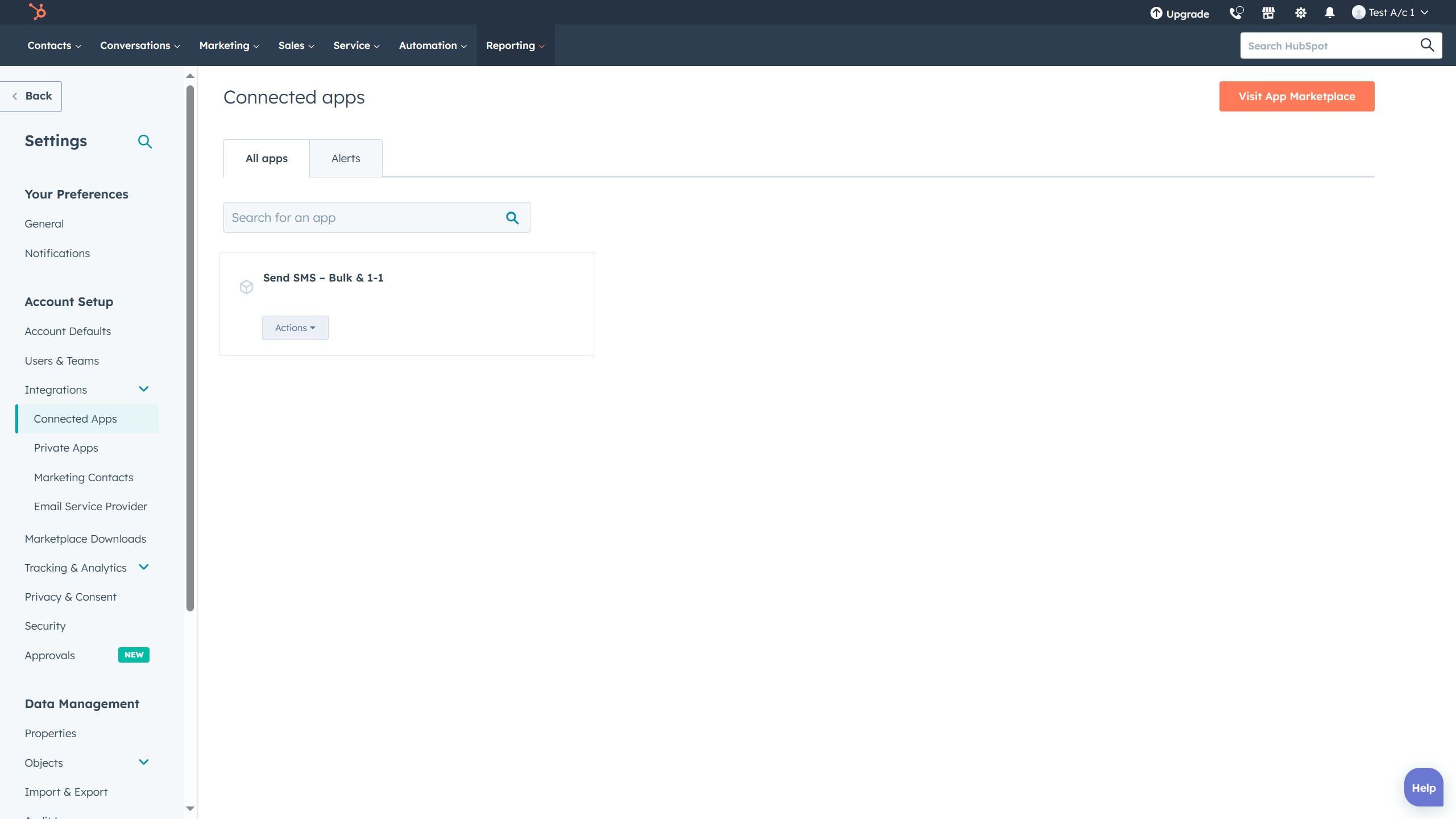
Connected Apps
Prerequisites and Steps to send SMS
- For using Send SMS - Bulk & 1-1, you have to get the authorization from Send SMS - Bulk & 1-1 to access API.
- After authorization you will get authkey.
- After installation and setup of Send SMS - Bulk & 1-1 app in HubSpot, Go to contacts.
- Select any contact.
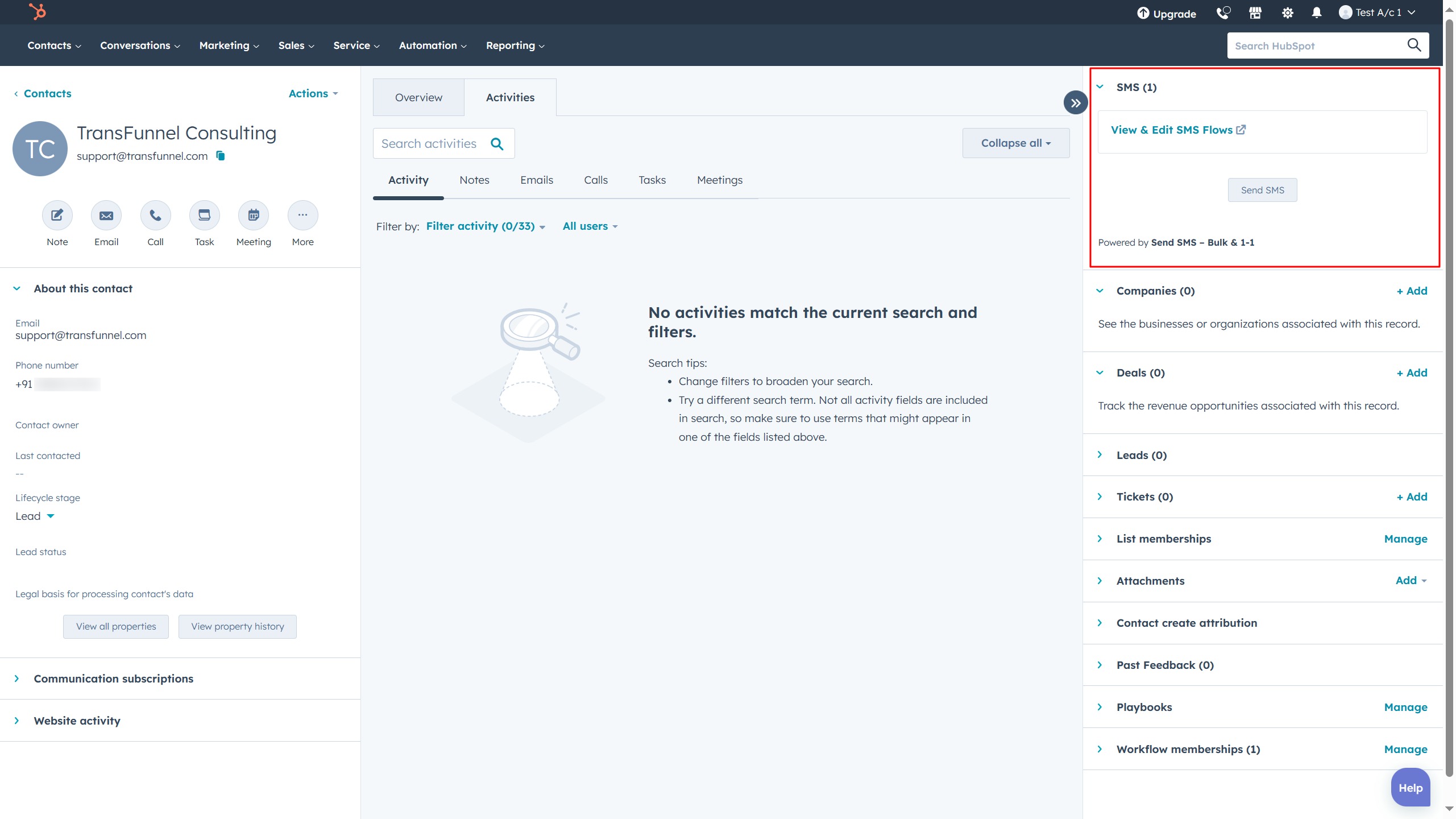
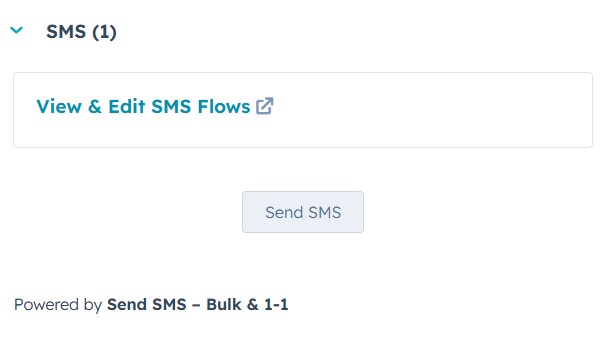
CRM Extension - On the right-hand side, you will see the CRM extension named Send SMS - Bulk & 1-1 Integration
- In the card, you will see a Link and button.
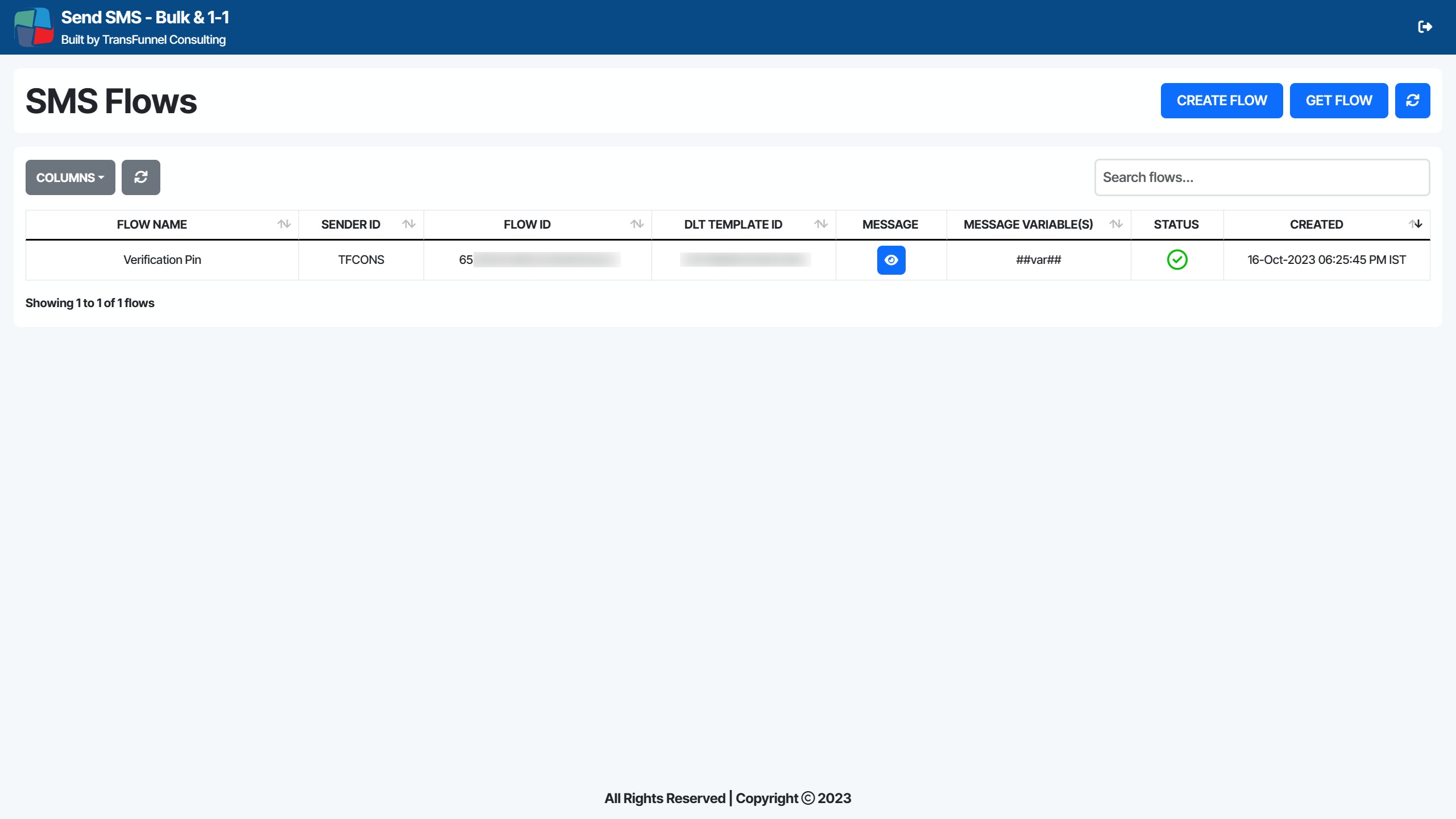
- Link will redirect to Flows management where you can add a flow for SMS and view the list of created flows. Note : To send SMS you have to add at least one flow
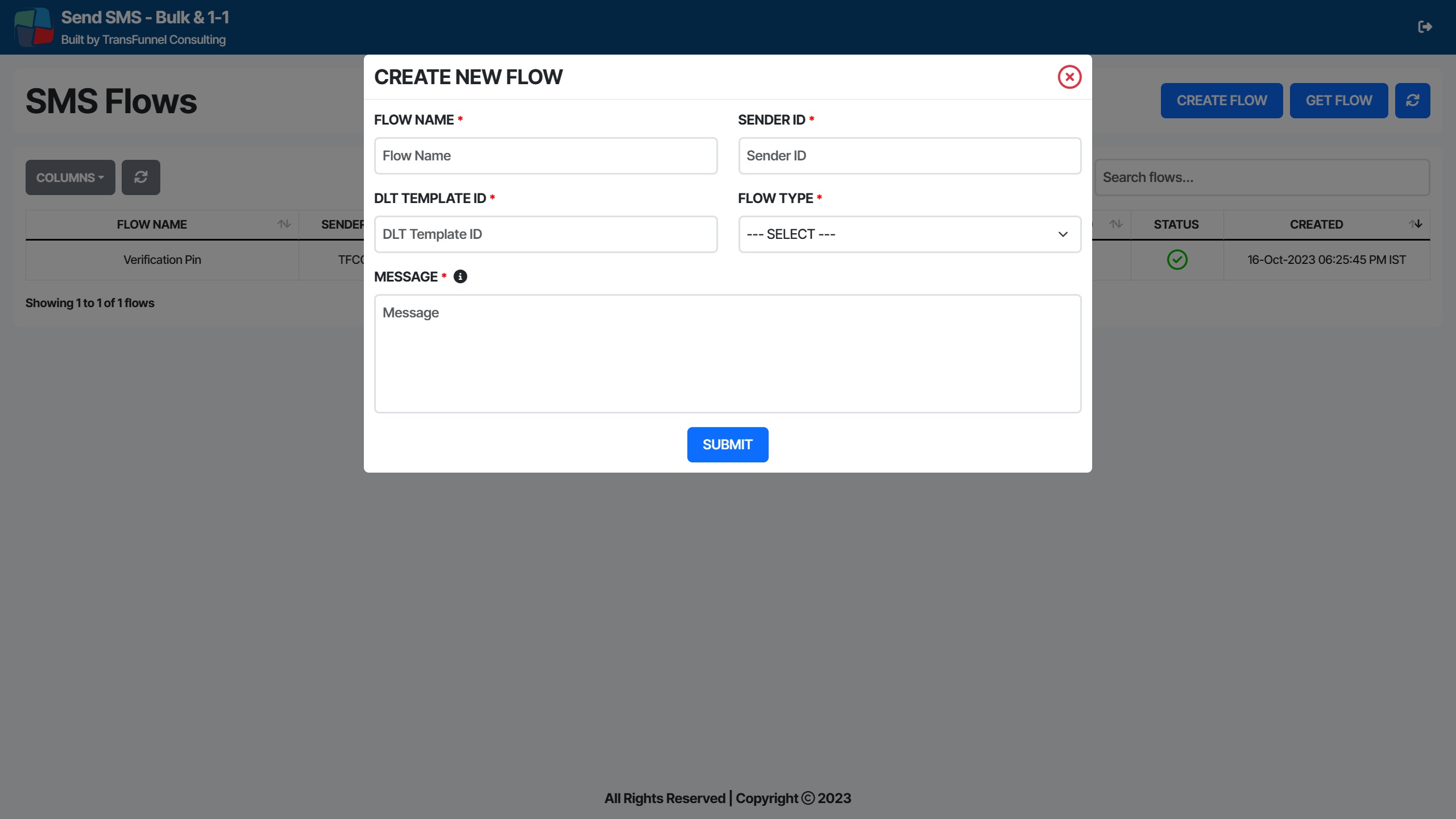
- Click on the create flow and fill the required details
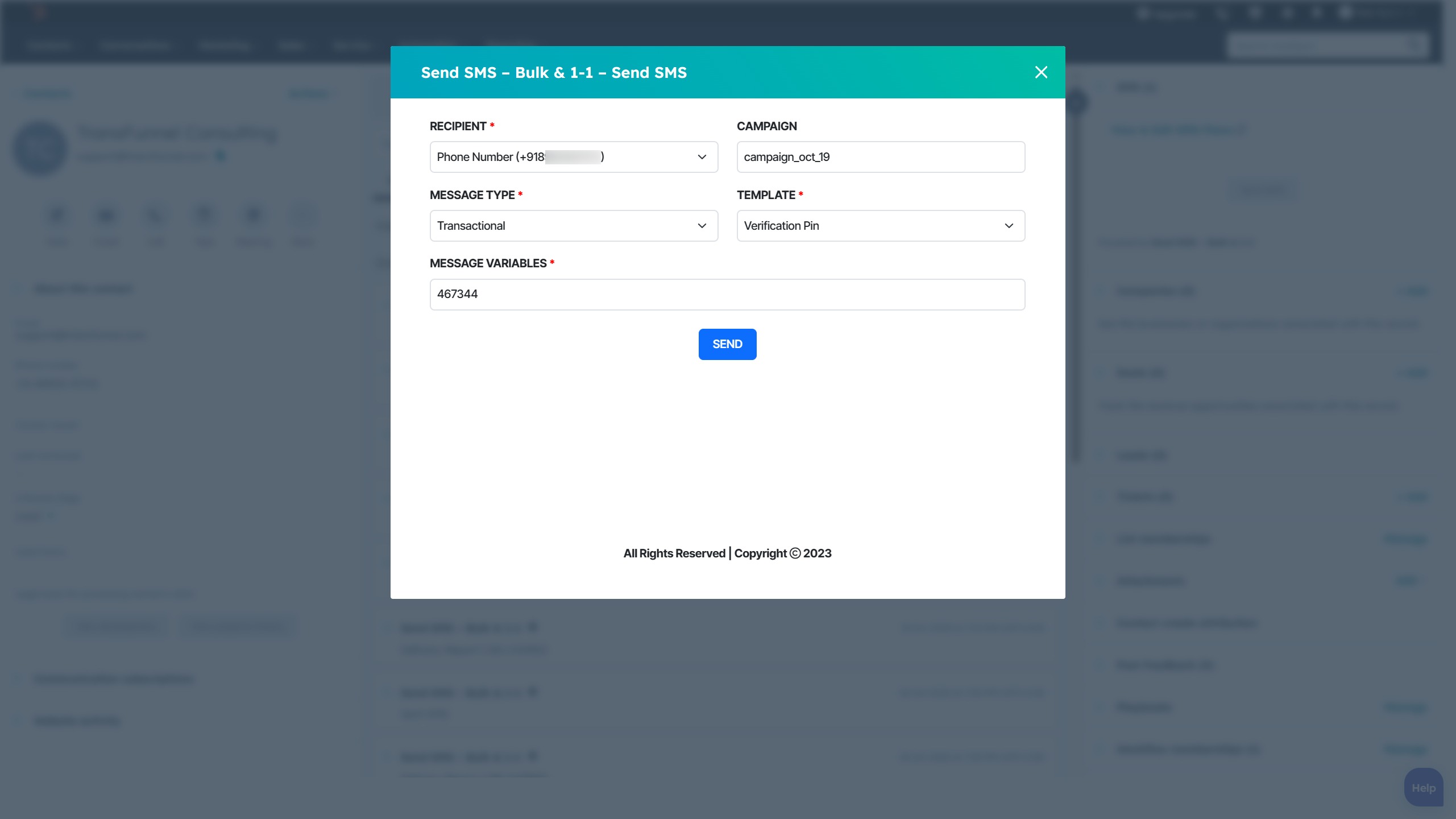
- After creating the flow, go back to HubSpot and navigate to Crm card, on clicking button it will open a iframe containing form where you will fill the details and select the template.
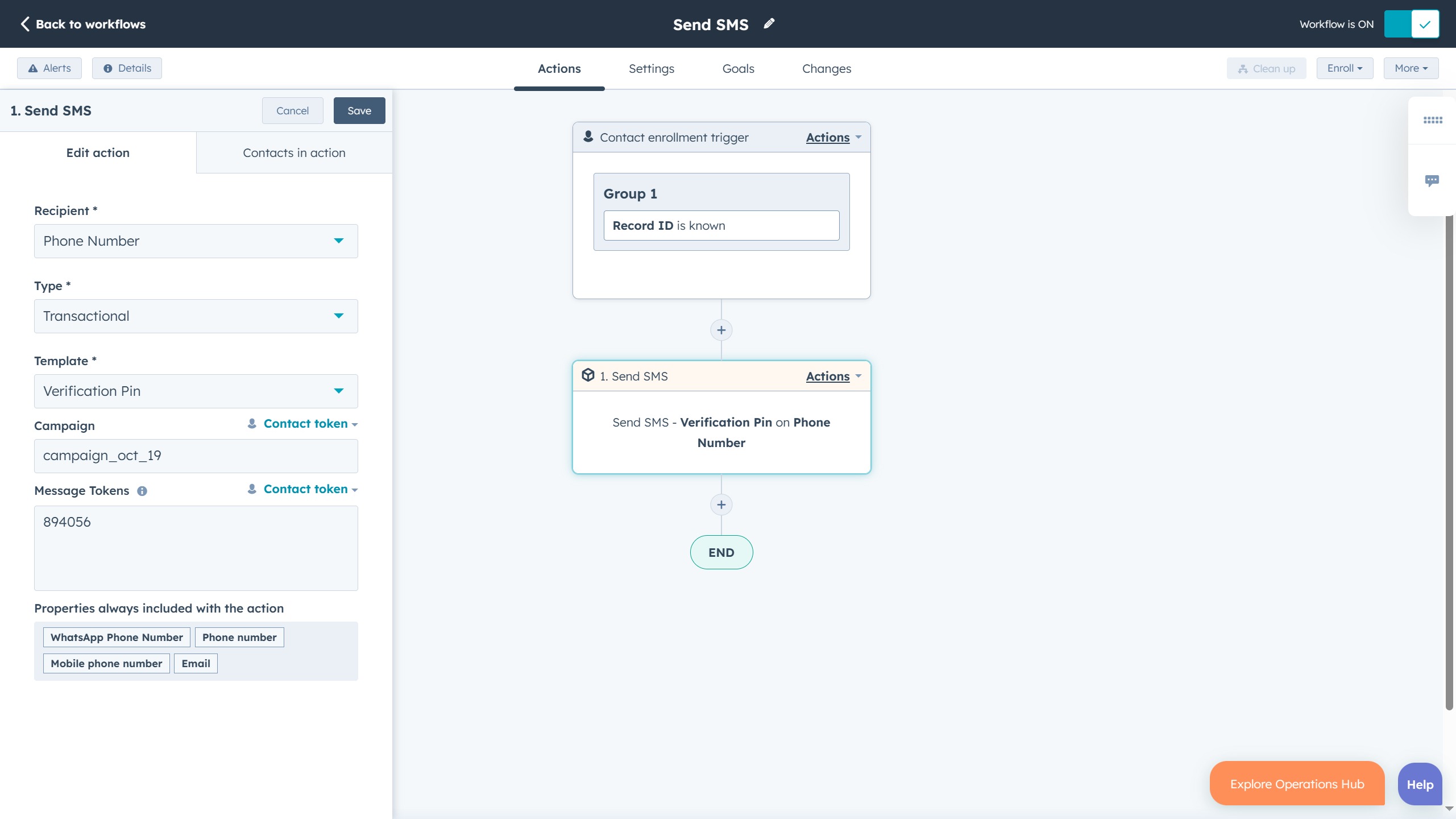
- For automated SMS sending you have to create a workflow with a trigger, and select the action named as Send SMS
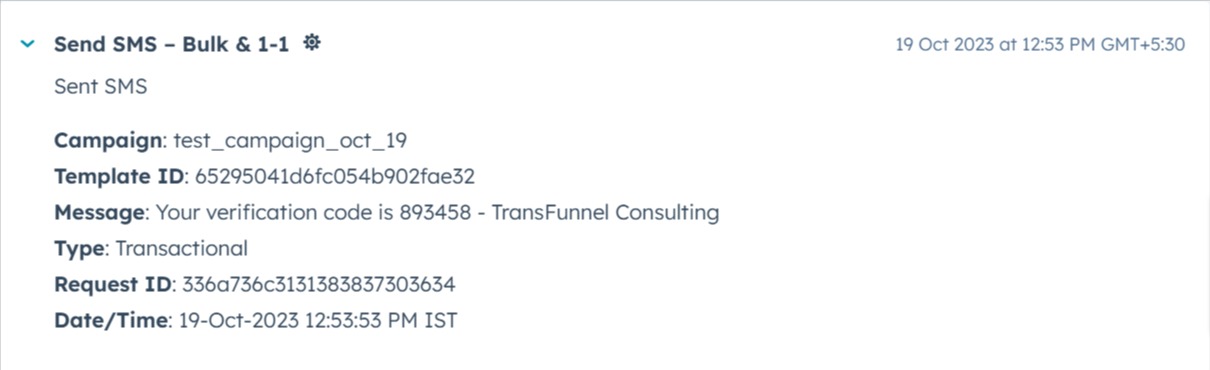
- In the same contact's activity timeline, you can view the SMS send event, refer to below image.
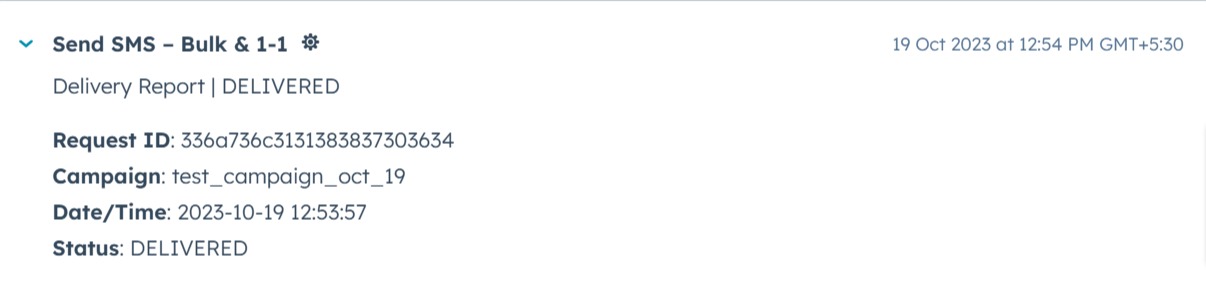
- The contact's activity timeline,you can view the delivery report Request ID, Sender ID, Campaign, Receiver number, Date/Time,Status (DELIVERED), Status Code you can refer to below image
- Note : If there is no flow added in Flow management, then you will not able to see the send SMS button.
- Note : Contact number is mandatory to make SMS.